This article will be published soon
Scheduled for: 2026-05-19 15:21
The article will appear automatically when the time arrives — no need to refresh.
A Leap Worth Two Years of Development
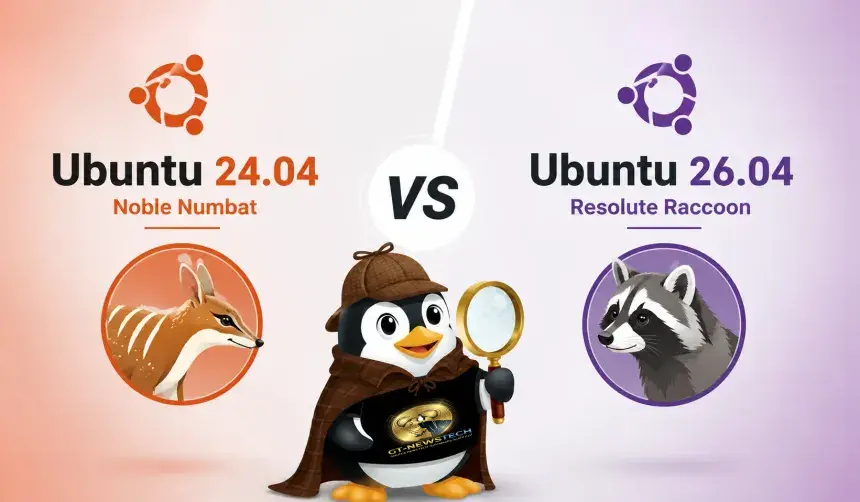
If you are still on Ubuntu 24.04 LTS and planning to upgrade to 26.04 LTS, you are not just getting what is new in this release. You are getting the accumulated changes from three interim releases: 24.10, 25.04, and 25.10. These changes span from low-level foundations to applications and the desktop environment.
🔗 Official Website: ubuntu.com/download/desktop
26 Key Changes in Ubuntu 26.04 LTS
The image below shows the new desktop with the official Resolute Raccoon wallpaper:
1. No More X11/Xorg Desktop Session
Ubuntu 26.04 LTS no longer includes an X11/Xorg desktop session. The reason for this removal is that GNOME removed support for running on the legacy display server. Ubuntu has used Wayland by default since 2021, and it became default for NVIDIA users in 2024 for testing ahead of this LTS. Most software that requires X11 runs on Wayland through XWayland, which is installed by default.
Ubuntu not supporting X11 does not affect other flavors like Lubuntu that still use it, and Xorg packages are available to install from the repositories.
2. Dracut Is Now the Boot Init
On new installations, Ubuntu now uses Dracut to generate the initramfs during boot. This change is not noticeable to the average user, but it provides a more predictable and future-proof boot process.
3. TPM-Backed Full Disk Encryption
The enhanced OS installer now offers support for installing Ubuntu with TPM-backed full disk encryption. This is compatible with select TPM 2 chips and requires Secure Boot enabled. Not all TPM chips are supported, and the installer will let you know if your TPM could work but cannot, explaining why.
The setup process emphasizes the importance of generating and saving a recovery key. New recovery keys can be generated from the Security Center application. Ubuntu 26.04 still supports disk encryption using a LUKS passphrase.
4. Rust-Based sudo and Coreutils
sudo is now provided by sudo-rs. The command itself has not changed, but password feedback is enabled by default, so you will see asterisks when entering your sudo password in the terminal. sudo-rs is not 100 percent compatible with the original implementation, but the old version is available to install from the repositories as sudo-ws.
In addition to sudo, most core command-line tools like ls, grep, and cat are Rust-based versions from the rust-coreutils package. However, cp, mv, and rm are still provided by GNU coreutils due to ongoing issues with the Rust versions.
5. Various Theme and Design Changes
The new folder icons adopt a vivid look that inherits the desktop accent color. Other Yaru icons have been improved, and there are new icons for the LibreOffice suite and the Snapshot webcam app.
A new animated spinner appears during loading operations, said to look less blurry. The login screen background is darker. Modal dialogs have a new look.
If MPRIS-compatible media is playing when the screen locks, you can control media playback directly from the lock screen.
6. Seven New Default Applications
Papers replaces Evince as the default document viewer. It is based on Evince’s code but rebuilt with Rust and GTK4/libadwaita. It supports ink annotation, markup tools, freeform text boxes, and digital signatures.
Loupe replaces Eye of GNOME as the default image viewer. It uses Glycin for improved image rendering, supports multi-touch gestures, and offers cropping, rotating, and flipping tools.
Ptyxis is now the default terminal. It is built with GTK4/libadwaita and supports GPU-accelerated rendering. Features include a tab overview, profile switching, and container support. The headerbar turns red when sudo is active.
Resources replaces the system monitor. It offers process, service, and hardware monitoring with big graphs and a clean layout.
Showtime replaces Totem as the default video player, only in the extended installation. It has a distraction-free interface with on-canvas controls that fade out during playback.
Security Center is a one-stop hub for security-related settings. It allows enabling Ubuntu Pro and managing encryption keys.
Sysprof is a developer tool for capturing performance data on software and system processes.
The image below shows the new default applications such as Loupe, Ptyxis, and Resources:
7. Nautilus File Manager Improvements
Performance improvements include up to 5 times faster directory loading and up to 10 times faster thumbnail generation, with priority given to files currently in view. A dashed border appears around icons when cut.
The search interface is markedly improved with pill-shaped filter buttons and a calendar widget to narrow down search periods. File properties can be opened as a floating window. A new shortcut ctrl + . opens the current folder in the terminal.
Long drive names are now shortened in the middle. Browsing phone content is smoother. Network addresses can be copied directly from the network panel. The batch rename tool has been improved.
The sidebar has been reorganized. Bookmarks moved lower, and Trash moved up. Bookmarks can be reordered using drag and drop. Internal drives now appear in the sidebar by default.
8. Notification Groups by Source
In the message tray, notifications are now grouped by the sending application. When an app sends multiple notifications, they stack together into a collapsed group instead of creating an ever-lengthening list. Stacks can be expanded with a single click.
9. App Center Manages Deb Software
The Manage section has gained a filter to see installed Deb software either individually or alongside snaps. App Center can also update some Deb apps alongside snaps. You will still need to use Software Updater or apt in a terminal for most updates.
10. Software Updater Indicator in the Panel
An indicator appears in the panel if there are pending updates. This solves the problem of the update window randomly appearing and stealing focus. You can hide the indicator by clicking on it and removing the “Show in panel” checkmark.
11. Ubuntu Dock Changes
The dock is now opaque. Transparency can be re-enabled if desired. The background effect behind icons on hover matches the radius of the dock edges. When right-clicking an app on the dock, the menu shows the app name and includes a link to view its details in App Center.
12. Desktop Icons Improvements
You can resize icons on the desktop using ctrl + + and ctrl + -, and select multiple icons using shift plus arrow keys. The right-click context menu is more consistent with the rest of the desktop.
13. Snap and Web Search in Overview
Searching in the overview now returns snap app results alongside installed apps, allowing you to find and install something without opening App Center first. There is also a web search shortcut.
14. APT Interface Improvements
The apt command-line tool has improved output formatting with colors and columns. Removal operations are listed last and in red. New commands include apt why and apt why-not to explain why a package is or is not installed.
15. Do Not Disturb Moved to Quick Settings
The Do Not Disturb toggle has moved to the Quick Settings menu, where it joins other system toggles.
16. HDR, VRR, and Improved Fractional Scaling
HDR support is available for monitors that support it, with a toggle switch in Settings. Variable Refresh Rate is now enabled for everyone without needing terminal commands.
Fractional scaling now offers values like 133 percent and 166 percent. A toggle has been added to control whether legacy X11 apps running on XWayland are scaled to match the rest of the system.
17. Remote Desktop Improvements
Remote sessions persist between service restarts. You can connect to a headless system and add a virtual monitor. The biggest gain comes from hardware-accelerated encoding via Vulkan and VA-API.
18. Wellbeing Controls
A new Wellbeing panel in Settings brings optional screen time tracking features. You can see how long you have been using your computer each day, set daily limits, or configure break reminders on a timer. Parental controls allow screen time limits and bedtime schedules for managed accounts.
19. Software & Updates App Dropped
The app is no longer included in new installations. There is no out-of-the-box GUI way to set proprietary drivers or manage PPAs. The tool can still be installed from the repositories.
20. Startup Applications Dropped
The utility was removed because GNOME added autostart toggles in Settings > Applications. The downside is there is no GUI way to add a script or custom command on login.
21. Linux Firmware Package Split
The linux-firmware package has been split into 18 vendor-specific sub-packages. All are installed by default, but you can remove any you do not need. The main benefit is bandwidth savings. A tiny fix to a single driver no longer requires downloading a 500 megabyte package.
22. Accessibility Improvements
A reduce motion setting has been added to tone down UI animations. The accessibility menu on the login screen is now located in the lower right corner, making assistive tools available before logging in.
23. Battery Charging Limit
For modern laptops that support power charging limits, a battery health charging option appears in Settings > Power. This caps charging at 80 percent instead of 100 percent to reduce battery wear.
24. Control Ubuntu Telemetry Collection
A user interface has been added to control the optional telemetry system. It can be accessed from Settings > Privacy and Security > Telemetry to view and enable or disable data collection.
25. AMD and NVIDIA AI Stacks
Ubuntu has added NVIDIA CUDA and AMD ROCm to the repositories, making it easier for developers to install them using apt. Both packages are maintained by Canonical.
26. Linux Kernel 7.0 and Mesa 26.0.x
Ubuntu 26.04 runs on Linux kernel 7.0. There have been 12 kernel releases since Ubuntu 24.04 launched with kernel 6.8. On the graphics driver side, this release ships with Mesa 26.0.3 and the default NVIDIA proprietary driver at version 590.x.
The image below shows the kernel version and basic system information:
Applications No Longer Included
The following applications are no longer included in new installations:
- Software & Updates
- Additional Drivers
- Startup Applications
- Totem (replaced by Showtime)
- Evince (replaced by Papers)
- GNOME Terminal (replaced by Ptyxis)
- Eye of GNOME (replaced by Loupe)
- System Monitor (replaced by Resources)
Google Drive integration through Online Accounts in Nautilus has also been removed. You can continue using your Google account for mail, calendar, and contacts, but you cannot access files from Google Drive through the file manager.
System Requirements
- 2 gigahertz dual-core processor or better
- 6 gigabytes of system memory
- 25 gigabytes of free hard drive space
These requirements are higher than those of Windows 11, but they are not hard limits. The system runs on devices with less than 6 gigabytes of RAM.
Download and Upgrade
Ubuntu 26.04 LTS can be downloaded for Intel/AMD 64-bit and ARM 64-bit architectures from the official Ubuntu website. Upgrading from 24.04 LTS is available through the normal update tool, with an upgrade notification appearing in the coming weeks.
Summary
Ubuntu 26.04 LTS is not just a routine update. It is a release that redefines what a Linux desktop can be for both regular users and developers. The full transition to Wayland, the tools rewritten in Rust, TPM-backed encryption, the new default applications, and the performance improvements in the file manager make it a compelling upgrade for anyone still on 24.04 LTS.
The downsides are few compared to the scale of changes. The removal of some familiar tools might be temporarily annoying, but replacements are available in the repositories or exist as better alternatives.
Quick Links
https://ubuntu.com/download/desktop
https://ubuntu.com/download/alternative-downloads
https://ubuntu.com/core/docs/dracut


Reactions & Comments
Sign in with GitHub to leave a comment or react. Powered by Giscus (stored in GitHub Discussions)